
Step-by-Step Guide
How Virtual Staging Works
Virtual staging generates a possible furnished version of a room photo. The useful workflow includes preparation, generation, full-size comparison, disclosure, and a decision to approve, regenerate, or reject the result.
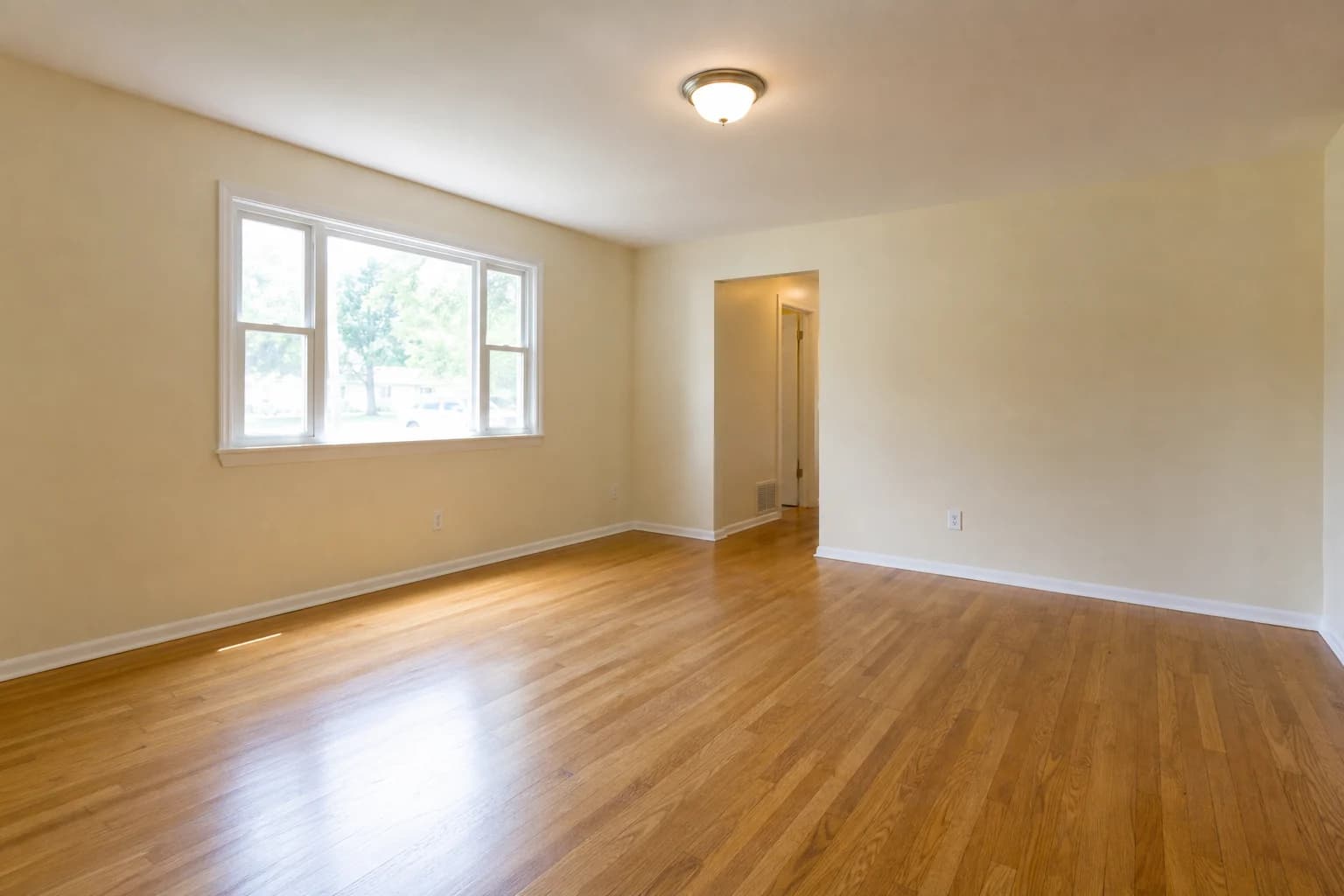
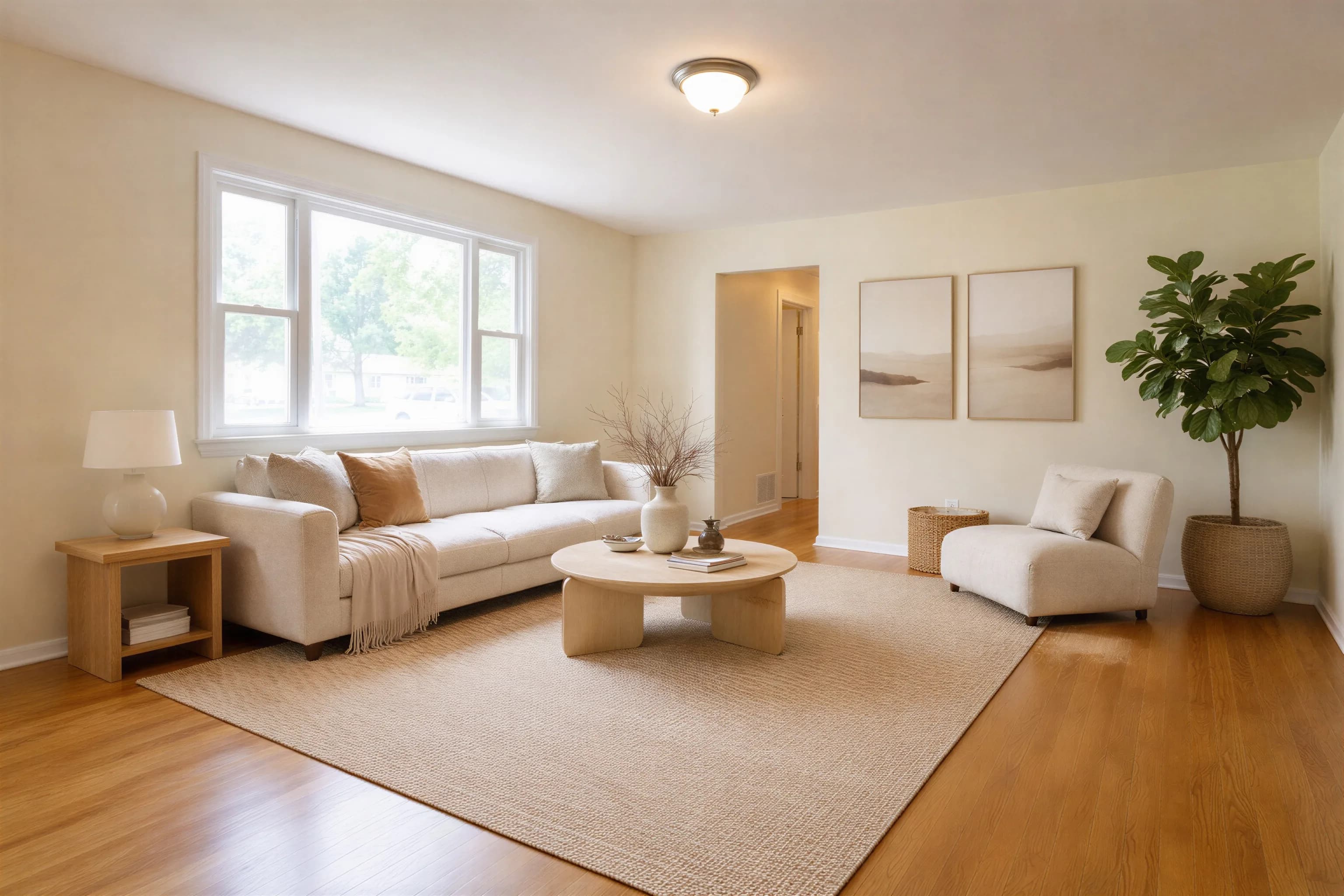
How do you virtually stage a home?
Use an authorized, level source photo; choose a style; generate a draft; and compare it with the original at full size. Check walls, windows, fixtures, scale, lighting, shadows, and artifacts. Reject material errors, add the required disclosure, and confirm destination rules before export.
Step-by-Step Guide
- 1
Take a landscape photo of the empty room from a corner
- 2
Upload to Agent Lens or capture directly from a listing website
- 3
Select a design style (Organic Modern, Mid-Century Modern, Modern Farmhouse, or Warm Maximalism)
- 4
Wait for generation; processing time varies by image and demand
- 5
Compare with the source, disclose the edit, and export only after review
4 Steps to Stage Any Room
Upload Your Photo
Use a sharp, level photo that shows the floor, walls, doors, and windows clearly. Landscape orientation and a corner angle can provide more room context. Only process photos you are authorized to use.
Tips
- Landscape orientation gives the AI more room to work
- Even lighting makes source details easier to inspect
- Clear the room of boxes and debris first
- Use an angle that shows floor area without extreme distortion
Choose a Design Style
Select from the available style categories. The style guides the visual vocabulary of the generated furniture and decor, but it does not validate whether the layout is practical or whether specific pieces fit the room.
Tips
- Match the style to visible architectural context
- Avoid decor that implies a feature the property does not have
- Do not infer protected characteristics about a buyer
- Use the same style across all rooms for consistency
AI Generates Your Staged Photo
The model infers room type, depth, lighting, and architectural features from the pixels, then generates a possible furniture layout. It does not measure the property and can create scale, geometry, shadow, or fixture errors. Processing time varies.
Tips
- Compare every window, door, floor edge, and built-in with the original
- Check furniture scale and walking paths rather than assuming they are correct
- Inspect shadows, reflections, and contact points at full size
- Regenerate or reject an image when a material error appears
Review, Disclose, and Export
Compare the output with the source at full size, add the required disclosure, and export only if the image remains accurate. MLS, platform, brokerage, and jurisdiction rules differ, including whether the original must appear and where a label belongs.
Tips
- Use the exact disclosure wording required for the destination
- Keep the original even if the platform does not require it in the listing
- Check export resolution, compression, and visible artifacts
- Recheck the rule whenever the destination or listing changes
Try It Yourself
Generate a room concept, compare it with the source, and publish only after review. 10 free credits — no credit card needed.
Virtual Staging How-To FAQ
How do you virtually stage a home?+
Prepare an authorized source photo, select a style, generate a draft, and compare it with the original. Check geometry, permanent features, scale, lighting, and artifacts; regenerate or reject errors. Add the required disclosure and export only after review.
Do I need special equipment for virtual staging?+
A recent smartphone or camera can provide a usable source image. Favor a level, sharp, evenly exposed photo with enough room context, and check the current upload screen for supported formats and limits.
How long does virtual staging take?+
Generation time varies with file size, provider, and service load. In our August 2026 open test, server tasks took 66.8 to 116.2 seconds, with a 98.8-second median. Budget additional time for full-size comparison, regeneration, disclosure, and export.
Can I virtually stage a room that already has furniture?+
Agent Lens works best with empty or mostly empty rooms. If a room has existing furniture, the AI may try to blend new pieces with the old ones, which can look unnatural. For rooms with existing furniture, consider a tool that offers furniture removal as a first step, then stage the empty result.
What design styles are available for virtual staging?+
Agent Lens currently groups 11 processing styles into default, functional, staging, and renovation categories. Names and availability can change. A selected style guides the generated look, but the result remains a concept that requires accuracy review.
Learn More
AI Virtual Staging Technology
Deep dive into how the AI works
Before & After Gallery
See real transformation results
Chrome Extension Guide
Installation and features walkthrough
Open Quality Test
Eight first outputs, failures, timing, hashes, CSV and JSON
Empty Room Virtual Staging
How to stage vacant homes step-by-step